Docs/Getting Started
Connecting LinkedIn
What connecting your own LinkedIn adds, what Sales Navigator unlocks, and what happens in the minute it takes to connect.
LinkedIn is most teams' strongest channel, and it is also the most personal one. Your agents find LinkedIn posts that match your keywords with nothing connected, but reaching people there happens through your own LinkedIn account, as you, and nobody on your team can ever send as you. What sends, and what waits for your approval, is up to each campaign's mode. Connecting takes about a minute.
Connect your account
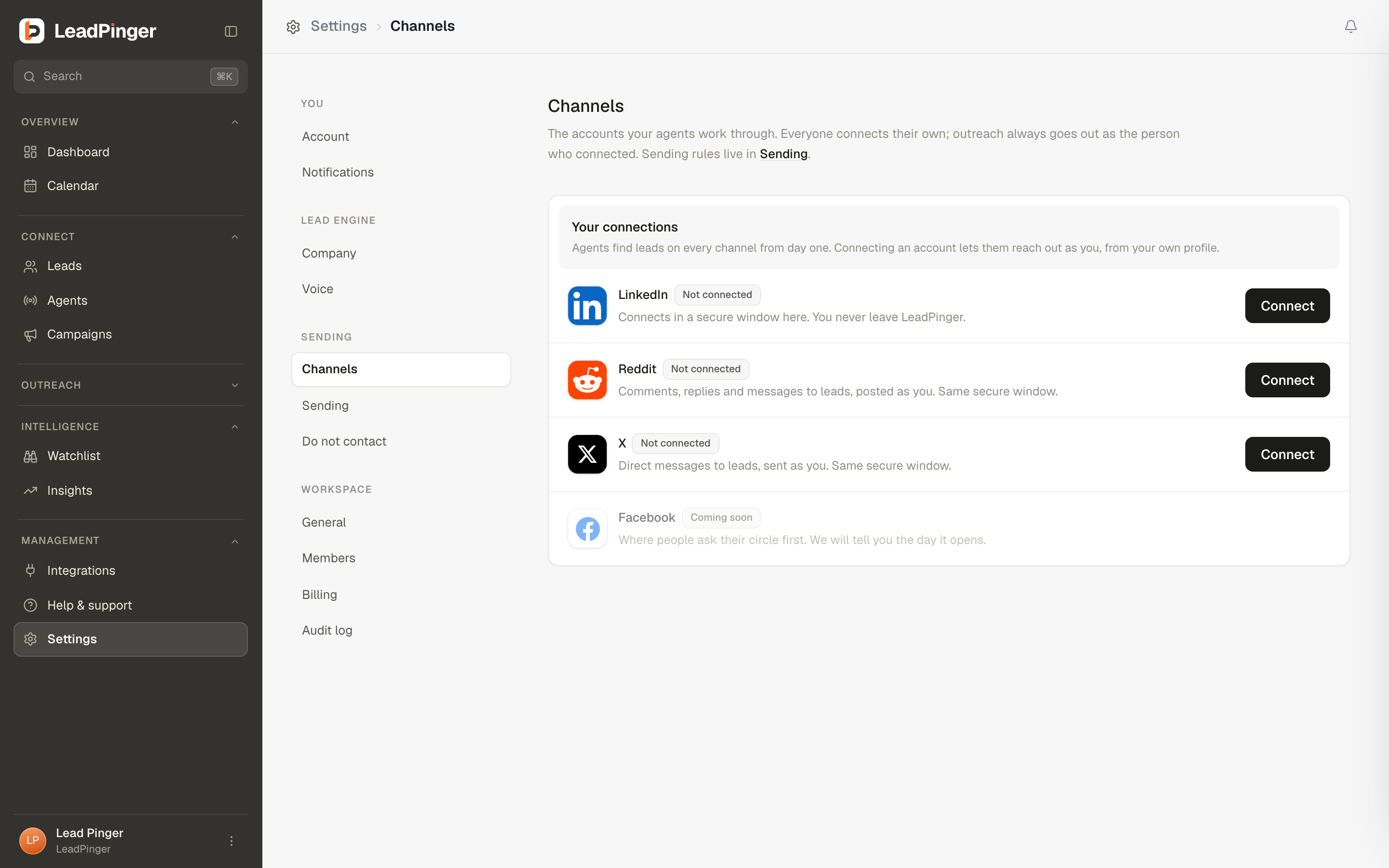
- 1Go to Settings, then Channels.
- 2On the LinkedIn row, click Connect. A secure sign-in opens right there; log in with your LinkedIn credentials.
- 3You are returned to Channels with the row showing Connected, your LinkedIn name, and where the account stands on the warm-up ladder. That's it, unless the Safety Check asks you to decide first (below).
Click the row, or Manage, to open the account's own page: its weekly numbers, your limits, its sending hours, and every account action at the top. See Sending Limits & Account Safety. You can disconnect at any time from the ⋯ menu at the top of that page. Disconnecting stops LinkedIn sending until you connect again; nothing is deleted.
The Safety Check
The first time an account connects, LeadPinger reads the account itself: its connections, its profile photo and its headline. LinkedIn doesn't show how old an account is, so age never counts. The check never blocks you:
- Ready: the account climbs the warm-up ladder normally, one clean week at a time.
- Starts slow: it connects and moves on every two clean weeks instead of every one.
- Not yet: the row shows Waiting for you. The account page lists the reasons, with Connect anyway at the top and Disconnect account in the ⋯ menu. Until you choose, nothing sends from it.
Anything short of Ready starts slow, including an account that connects anyway. Accounts connected before the Safety Check existed were not checked and climb the normal ladder, and reconnecting after a session ends keeps the account's place in its warm-up.
Plain LinkedIn vs Sales Navigator
Your agents find LinkedIn posts that match your keywords with no account connected. Connecting a plain LinkedIn account adds reaching out as you: comments, DMs and connection requests from your own profile, plus leads from the people who engage with the accounts your agents watch.
Sales Navigator changes what finding means. With it, your agent searches for the exact people who match your ideal customer profile: job titles, locations, industries, company types and sizes. Instead of waiting for the right person to post, LeadPinger brings them to you as leads automatically. In practice, almost every LinkedIn lead comes through Sales Navigator, which is why the app will keep nudging you until your team has one.
The row says Sales Navigator when your account has it. If you add Sales Navigator after connecting, connect the account again from the Channels page while signed in to the account that carries it.
Sharing Sales Navigator with your team
The person who holds the Sales Navigator account can turn on Share it with teammates under Sales Navigatoron their LinkedIn account's page in Settings, Channels. Teammates without their own can then find leads through yours. Two things to know: sharing splits your daily search allowance between them, it does not add to it, and sharing never lets anyone send as you. Sending always comes from each person's own connected account.
What the row shows
- Connected: the account is live. The row shows its warm-up stage and what it sent this week, and says Sales Navigator when your account has it.
- Paused: nothing sends from it, and the account's page says why: you paused it, or LeadPinger paused it after a problem (with when it resumes).
- Waiting for you: the Safety Check found reasons for caution. Open the account to choose Connect anyway or Disconnect account.
- Stopped: LinkedIn restricted the account. Check it on LinkedIn, then resume it from its page; it starts again at stage 1.
- Reconnect needed: LinkedIn asked the account to sign in again, or ended the session. Open the account and click Reconnect at the top.
Questions this page didn't answer? Email support@leadpinger.ai, we usually reply within one business day.